A Faster BuddyX Chat Tab
We’ve upgraded the BuddyX Chat Tab to make everyday chatting faster and easier.Instead of relying fully on the standard OnlyFans chat list, BuddyX ...
The Team Members page is where you manage everyone on your BuddyX account — who they are, what role they have, and which creators they can work on.
Create a Role first – Before inviting, make sure you’ve already set up a role (like Chatter, Manager, or Accounting).
On the top right, you will see the button “Invite User”, click on it – You’ll see a popup form like this:
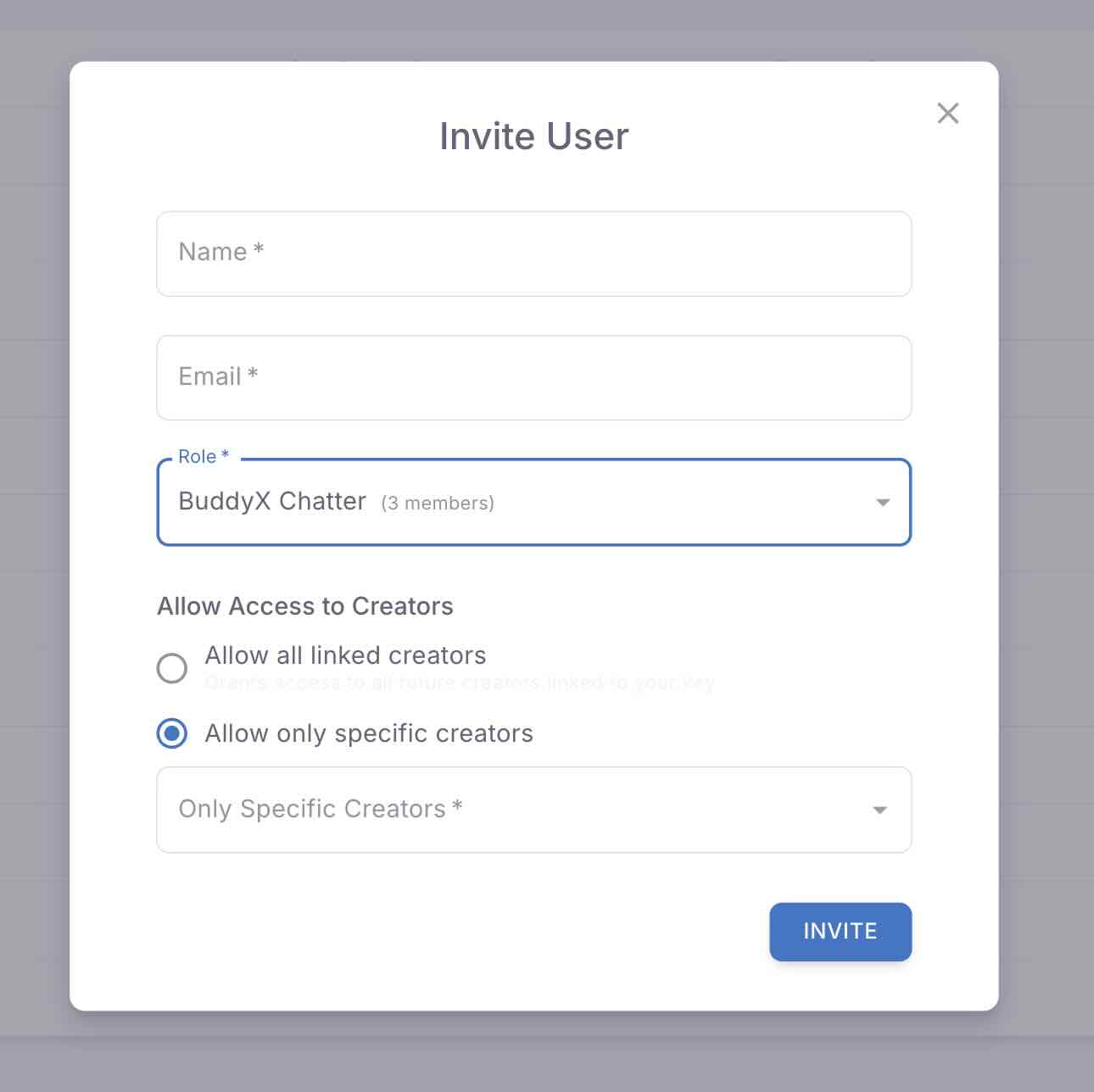
Fill in the details:
Send the Invite – They’ll get an email to join your team.
⚠️ Note: If you see the error “This email is already registered on BuddyX,” the team member will need to give you a new email address.
On the Team Members table, you’ll see:
Use the three dots menu to:
By default, only Active members show in the table. To see deactivated accounts, click the filter icon (next to the Settings button) above the table and type ‘inactive’. The list of all team members will show up.
